
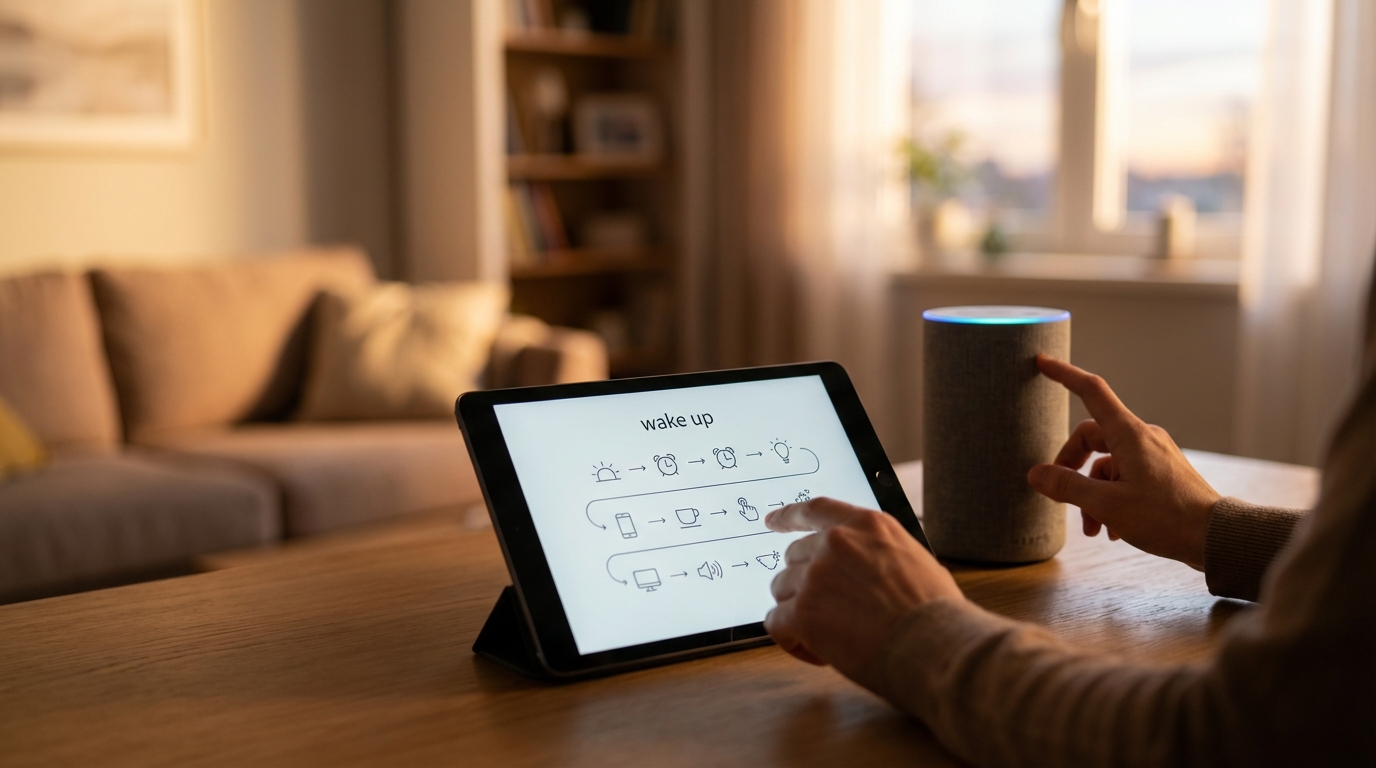
Understanding Home Automation Workflows
Home automation has transitioned from a futuristic concept to an accessible reality for many, offering enhanced convenience, efficiency, and comfort within living spaces. At its core, home automation involves the integration of various smart devices and systems that can communicate and act in concert, often without direct human intervention. The effectiveness and true utility of such a system, however, hinge significantly on how these devices are orchestrated through what are known as “workflows.” A workflow in home automation is essentially a defined sequence of steps, decisions, and actions that dictate how automated devices respond to specific events or conditions. It’s the underlying logic that transforms individual smart devices into a cohesive, intelligent environment. Understanding these workflows is crucial for anyone looking to implement, optimize, or troubleshoot an automated home setup, ensuring it aligns precisely with their needs and preferences. This post will delve into the fundamental concepts, types, design principles, and considerations involved in creating robust home automation workflows.Foundational Concepts of Home Automation
Before exploring workflows in detail, it’s beneficial to briefly outline the fundamental components that make up a typical home automation system. These elements provide the building blocks upon which workflows are constructed.What is Home Automation?
Home automation refers to the ability to control and automate various aspects of a home, such as lighting, temperature, security systems, entertainment systems, and appliances, using connected devices. These systems can be controlled remotely, scheduled, or triggered by specific events, creating an adaptive living environment.Core Components
Several key components typically work together in a home automation setup:- Smart Devices: These are the individual “things” that perform actions, like smart lights, thermostats, door locks, cameras, and sensors (motion, door/window, temperature).
- Controllers/Hubs: Often referred to as the “brain” of the system, a hub acts as a central point for devices to connect, communicate, and process commands. It translates signals between different communication protocols.
- Communication Protocols: These are the languages devices use to talk to each other. Common examples include Wi-Fi, Bluetooth, Zigbee, Z-Wave, and Thread.
- User Interfaces: These are the means by which users interact with the system, including smartphone apps, voice assistants, wall-mounted panels, and physical smart buttons.
Defining a Home Automation Workflow
A workflow in home automation represents a logical sequence of operations that begins with a trigger, evaluates conditions, and culminates in one or more actions. It brings intelligence and responsiveness to individual smart devices.What is a Workflow?
Imagine a simple instruction set: “If X happens, and Y is true, then do Z.” This captures the essence of a home automation workflow. It’s a programmatic way of telling your smart home system how to behave under specific circumstances, moving beyond mere remote control to true automation.Elements of a Workflow
Every workflow is composed of three primary elements: triggers, conditions, and actions.Triggers
A trigger is the event that initiates a workflow. Without a trigger, the workflow remains dormant. Triggers can be diverse and typically fall into these categories:- Event-based Triggers: These occur when a specific event happens. Examples include motion detected by a sensor, a door opening, a smart button being pressed, or a security alarm being tripped.
- Time-based Triggers: These are initiated at a specific time of day, on certain days of the week, or relative to natural events like sunrise or sunset. For instance, turning lights on at 6:00 PM or when the sun sets.
- Manual Triggers: Although automation aims to reduce manual intervention, some workflows can be started by a direct command from a user, such as tapping a scene button in an app or issuing a voice command.
Conditions
Conditions are optional but crucial for adding intelligence and nuance to workflows. They are criteria that must be met for the workflow’s actions to proceed after a trigger has occurred. If the conditions are not met, the actions will not execute. Examples include:- Environmental Conditions: Is the ambient light level below a certain threshold? Is the temperature within a specific range?
- Device State Conditions: Is a particular light already on? Is the front door locked or unlocked? Is the alarm system armed?
- User Input Conditions: Is anyone home? Is a specific person present in a room?
Actions
Actions are the tasks that the smart home system performs once the trigger has fired and all specified conditions have been met. Actions can involve individual devices or a group of devices:- Single Actions: Turning a specific light on or off, locking a door, adjusting a thermostat.
- Sequential Actions: A series of actions performed one after another, such as dimming lights, then closing blinds, then starting a music player.
- Parallel Actions: Multiple actions that occur simultaneously, for example, turning on all living room lights and adjusting the thermostat at the same time.
Types of Home Automation Workflows
Workflows can range from simple, direct commands to intricate sequences involving multiple devices and logical considerations.Basic Automation
These are the simplest forms of workflows, often involving a single trigger and a single action, sometimes with minimal conditions. Example: “At sunset, turn on the porch light.” (Trigger: Time – sunset; Action: Turn on porch light).Conditional Automation
These workflows introduce one or more conditions, making the automation more intelligent and context-aware. Example: “When motion is detected in the hallway, if it is dark, turn on the hallway light for 5 minutes.” (Trigger: Motion; Condition: Dark; Action: Turn on light, then turn off after 5 mins).Sequential Automation
These involve a series of actions that happen in a particular order, often creating a “scene” or routine. Example: “When I say ‘Good Morning’, unlock the front door, turn on the kitchen lights to 50% brightness, and start the coffee maker.” (Trigger: Voice command; Actions: Unlock door, set lights, start coffee maker – sequentially or in parallel depending on configuration).Advanced/Complex Workflows
These combine multiple triggers, conditions, and actions, often involving decision trees or branching logic. They can integrate information from various sensors and devices, leading to sophisticated behaviors. Example: “When the alarm system is armed to ‘Away’ mode, ensure all doors are locked, all lights are off, the thermostat is set to an economy temperature, and send a notification if any window is open.” This involves multiple conditions (door locked, light off, window open) and multiple actions (lock, turn off, set temp, notify).Designing Effective Home Automation Workflows
Creating workflows that genuinely enhance daily living requires thoughtful planning and an understanding of how people interact with their environment.Identifying Needs and Goals
Begin by considering what problems you want to solve or what conveniences you wish to add. Are you looking to save energy, increase security, or simply make daily routines smoother? Clearly defined goals will guide your workflow design.Mapping the User Experience
Think about how you and others in your home will interact with the automated system. Will actions feel natural? Is the timing appropriate? Consider the flow of activities within your home and how automation can support them without causing disruption or frustration.Considering Dependencies
Some devices or actions may depend on others. For example, a smart TV cannot play content if the smart plug it’s connected to is off. Map out these relationships to prevent conflicts or non-functional workflows.Prioritizing Simplicity and Reliability
Start with simpler workflows and gradually build complexity. This approach makes it easier to troubleshoot and ensures a stable foundation. Prioritize reliability by choosing robust devices and testing workflows thoroughly.Iteration and Refinement
Home automation is rarely a “set it and forget it” endeavor. Be prepared to test, observe, and adjust your workflows. What seems logical on paper might not work perfectly in practice. User feedback and real-world behavior are invaluable for refinement.Challenges and Considerations
While the benefits are numerous, implementing home automation workflows can present certain challenges.Connectivity and Interoperability
Different devices may use different communication protocols. Ensuring they can communicate seamlessly, often through a central hub or platform, is crucial. Interoperability issues can lead to unreliable workflows.Security and Privacy
Connecting numerous devices to a network raises concerns about data security and privacy. Protecting your network and devices from unauthorized access is paramount. Be aware of what data your devices collect and how it’s used.Power Consumption and Maintenance
Some smart devices, particularly those running on batteries, require periodic maintenance. Workflows should consider device battery levels, network stability, and potential power outages that could disrupt automation.User Interface and Control
Even with automation, there will be times when manual override or direct control is needed. Ensure that your system provides intuitive and accessible interfaces for controlling devices and managing workflows.Conclusion
Understanding home automation workflows is foundational to unlocking the full potential of a smart home. By grasping the concepts of triggers, conditions, and actions, and applying thoughtful design principles, individuals can create an environment that is not only convenient and efficient but also deeply personalized. While challenges exist, careful planning, iterative refinement, and a focus on user experience can lead to a robust and responsive automated home that seamlessly integrates into daily life, enhancing comfort and peace of mind for its occupants.Frequently Asked Questions (FAQs)
Q1: What is the difference between a trigger and a condition in home automation?
A1: A trigger is an event that initiates a workflow (e.g., motion detected, time reaches 6 PM). A condition, on the other hand, is a criterion that must be met for the workflow’s actions to proceed *after* the trigger has occurred (e.g., it must be dark, the door must be unlocked). The trigger starts the process, and conditions determine if the process continues to the actions.
Q2: Can home automation workflows operate without an internet connection?
A2: It depends on the system and the devices. Many modern smart home hubs and devices are designed to execute basic workflows (like turning on lights based on a motion sensor) locally, without needing an active internet connection. However, features requiring external services, cloud processing, remote access, or integrations with internet-dependent platforms will cease to function or be limited without internet access.
Q3: How do I start designing my first workflow?
A3: Begin with a simple, common scenario. Identify a repetitive task or a minor inconvenience you experience daily. For example, “I always turn on the kitchen light when I walk in after sunset.” This becomes your starting point: Trigger (motion in kitchen), Condition (after sunset), Action (turn on kitchen light). Gradually add more complexity as you gain familiarity.
Q4: Are home automation workflows truly customizable?
A4: Yes, they are highly customizable. While some platforms offer pre-built routines, the true power of home automation lies in tailoring workflows to individual preferences, schedules, and environmental specifics. Modern smart home platforms provide tools to create intricate logic, combine various device types, and adapt to changing needs, allowing for a unique and personalized automated experience.
Q5: What are some common pitfalls to avoid when setting up workflows?
A5: Common pitfalls include creating overly complex workflows too early, leading to difficulty in troubleshooting; neglecting to consider all edge cases or unintended consequences (e.g., lights turning on when you don’t want them to); ignoring device compatibility issues; and failing to test workflows thoroughly. It’s also easy to forget about privacy and security considerations, making your network vulnerable.

Diana Miller, is a dedicated nature enthusiast and an outdoor adventurer. She began leading groups for excursions in her teens and never stopped. Following her passion for nature, she gathers her friends for outdoor trips every now and then. And for the last 10 years, she has executed workshops on backpacking, snow kayaking and traveling that included her main motive of lightweight packing while outdoors. During leisure, she loves planning for her next adventure.