
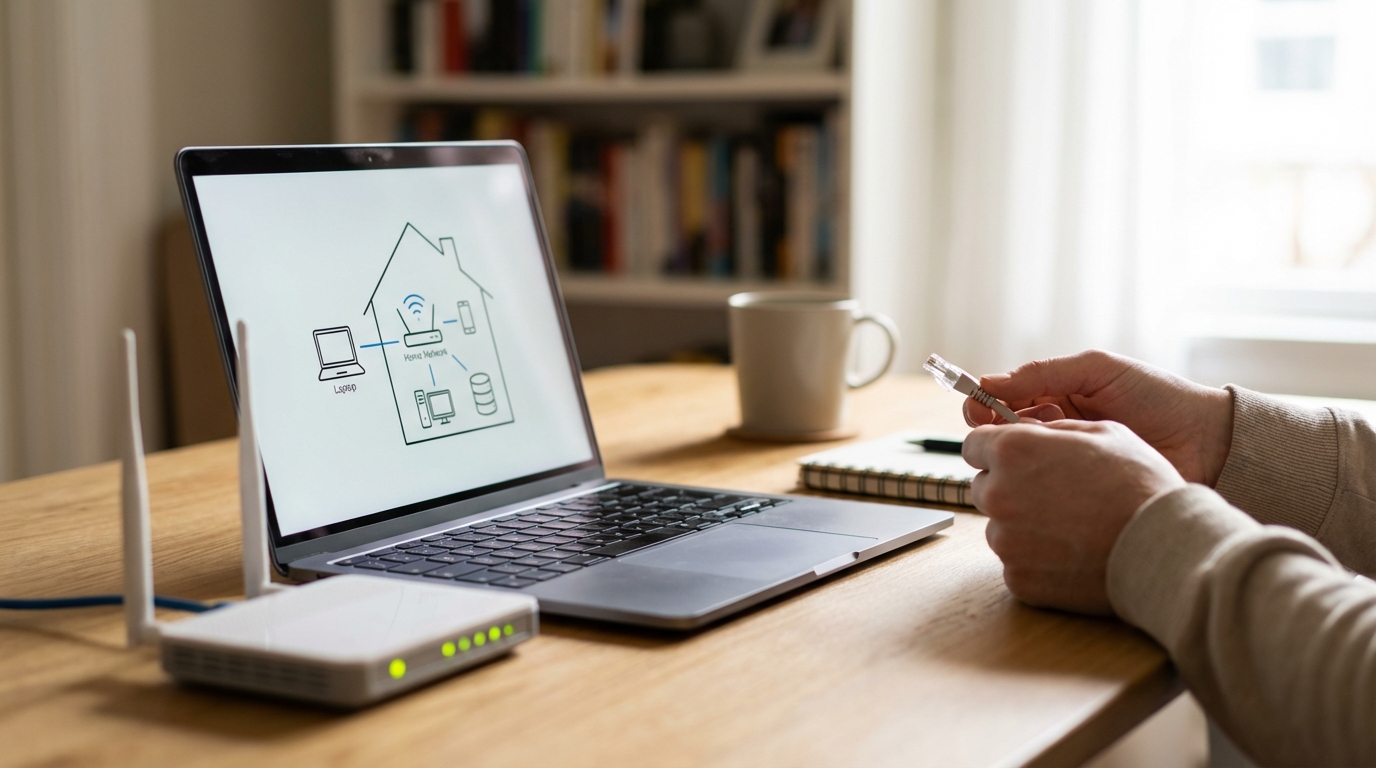
Understanding Network Basics for Home Computers
In an increasingly connected world, most homes now feature multiple devices that communicate with each other and the internet. From laptops and smartphones to smart televisions and security cameras, these devices rely on a home network to function seamlessly. Understanding the fundamental concepts of how these networks operate can empower you to troubleshoot issues, enhance security, and optimize your digital experience. This guide will demystify the core components and principles behind your home computer network.What is a Computer Network?
At its core, a computer network is a collection of interconnected devices that can share resources and data. For a home, this typically means allowing your various devices to access the internet through a single connection and often enabling them to communicate with each other, such as printing from your laptop to a network printer or streaming media from a computer to a smart TV.Core Components of a Home Network
A functional home network relies on several key pieces of hardware working in concert.The Modem
The modem (modulator-demodulator) is the device that connects your home network to your Internet Service Provider’s (ISP) network. It acts as a translator, converting the digital signals from your computer into analog signals that can travel over your ISP’s line (cable, fiber, or DSL) and vice-versa. Without a modem, your home network cannot access the internet.The Router
The router is the central hub of your home network. Its primary functions include:- Connecting all your wired and wireless devices within your home.
- Directing traffic between these devices and also between your home network and the internet (via the modem).
- Assigning unique internal addresses to each device on your network.
Network Cables (Ethernet)
Ethernet cables provide a wired connection between devices on your network. They are typically used for:- Connecting your modem to your router.
- Connecting devices that require high speed and stability, such as desktop computers, gaming consoles, or smart TVs, directly to the router.
- Offering a more reliable and often faster connection compared to wireless options, with less susceptibility to interference.
Wireless Adapters
Most modern devices, such as laptops, smartphones, and tablets, come equipped with built-in wireless adapters. These adapters allow devices to connect to your router via Wi-Fi signals, eliminating the need for physical cables and providing mobility.Networked Devices
These are the various computing and smart devices within your home that connect to the network. Examples include:- Desktop computers and laptops
- Smartphones and tablets
- Smart TVs and streaming devices
- Network printers
- Smart home devices (lights, thermostats, security cameras)
Types of Network Connections
Home networks primarily utilize two types of connections: wired and wireless.Wired Connections (Ethernet)
Wired connections use Ethernet cables to physically link devices to the router.- Advantages: Generally offer greater speed, lower latency, more stable connections, and enhanced security compared to wireless. They are less prone to interference from other electronic devices.
- Disadvantages: Require physical cables, which can be less convenient and restrict device placement.
Wireless Connections (Wi-Fi)
Wireless connections use radio waves to transmit data between devices and the router.- Advantages: Provide mobility and convenience, allowing devices to connect to the network without physical cables from anywhere within the wireless signal’s range.
- Disadvantages: Can be slower and less stable than wired connections, susceptible to interference, and may have security considerations if not properly configured. Signal strength can degrade with distance from the router or obstructions.
Network Addressing: IP Addresses
Every device connected to a network, including those in your home, is assigned a unique identifier known as an Internet Protocol (IP) address. This address allows devices to locate and communicate with each other.- Private IP Addresses: These are assigned by your router to devices within your home network (e.g., 192.168.1.X). These addresses are only visible and routable within your local network.
- Public IP Address: Your ISP assigns a single public IP address to your modem. This is the address that identifies your entire home network to the rest of the internet. When you browse a website, your request appears to come from this public IP address.
- DHCP: Most routers automatically assign private IP addresses to devices using a service called Dynamic Host Configuration Protocol (DHCP), simplifying network setup.
Basic Network Security Concepts
Securing your home network is crucial to protect your personal data and prevent unauthorized access.Router Password
Upon initial setup, most routers come with a default username and password. It is imperative to change these defaults to strong, unique credentials. This prevents unauthorized users from accessing your router’s settings and potentially compromising your network.Wi-Fi Password (WPA2/WPA3)
Your Wi-Fi network should always be protected with a strong password using modern encryption standards like WPA2 (Wi-Fi Protected Access II) or the newer WPA3. This encrypts the data transmitted wirelessly, making it very difficult for unauthorized individuals to intercept your network traffic. Avoid using outdated standards like WEP, which are no longer considered secure.Firewalls
A firewall acts as a barrier, monitoring incoming and outgoing network traffic and deciding whether to allow or block specific data packets based on a set of security rules. Your router usually has a built-in hardware firewall, and most operating systems also include software firewalls. Keeping these active provides a critical layer of defense against external threats.Software Updates
Regularly updating the firmware on your router and ensuring that the operating systems and applications on your networked devices are current is essential. These updates often include security patches that address vulnerabilities, making your network less susceptible to exploits.Common Network Troubleshooting Steps
Even with a well-configured network, occasional issues can arise. Here are some fundamental troubleshooting steps:- Restart Your Devices: A simple restart of your modem, router, and the problematic device can often resolve connectivity issues by clearing temporary glitches.
- Check Cables: Ensure all Ethernet cables are securely plugged into the correct ports on both ends. Look for any visible damage to the cables.
- Verify Wi-Fi Password: Double-check that you are entering the correct Wi-Fi password on your wireless devices.
- Check Network Status: On your computer or device, review the network status or Wi-Fi connection icon. This can provide clues about whether the issue is with the local connection or the internet service.
- Isolate the Problem: Determine if the issue affects all devices or just one. If only one device is affected, the problem might be with that specific device rather than the network as a whole.
Conclusion
A fundamental understanding of home computer network basics provides a solid foundation for navigating today’s digital landscape. Knowing the roles of your modem and router, the differences between wired and wireless connections, the significance of IP addresses, and essential security practices empowers you to maintain a stable, efficient, and secure online environment for all your connected devices. While networking can appear complex, grasping these core concepts is an achievable and valuable skill for any home computer user.Frequently Asked Questions (FAQs)
Q1: What is the main difference between a modem and a router?
A: A modem connects your home network to the internet provided by your ISP, translating signals between your home and the ISP’s network. A router, on the other hand, creates and manages your local home network, connecting all your devices together and directing traffic between them and the internet (via the modem).Q2: Why is my Wi-Fi sometimes slow even when my internet speed is high?
A: Slow Wi-Fi can be caused by various factors, even with high internet speed. Common reasons include:- Distance from the router or physical obstructions (walls, furniture).
- Interference from other electronic devices or neighboring Wi-Fi networks.
- Too many devices simultaneously connected to the Wi-Fi.
- Outdated router firmware or hardware.
Q3: What is an SSID?
A: SSID stands for Service Set Identifier. It is the name of your wireless network, which you see when you search for available Wi-Fi networks on your devices. You can usually customize your SSID through your router’s settings.Q4: Is a wired Ethernet connection more secure than a wireless Wi-Fi connection?
A: Generally, a wired Ethernet connection is considered more secure because it requires physical access to the network cable and ports. Wireless Wi-Fi connections, by their nature, transmit data over the air, making them potentially more susceptible to unauthorized interception if not properly secured with strong encryption (like WPA2 or WPA3) and a robust password.Q5: How often should I restart my router?
A: There’s no strict rule, but restarting your router periodically (e.g., once a month or every few months) can help resolve minor performance issues, clear out temporary memory caches, and apply certain updates that require a reboot. If you experience persistent network problems, restarting it is often the first troubleshooting step.
Diana Miller, is a dedicated nature enthusiast and an outdoor adventurer. She began leading groups for excursions in her teens and never stopped. Following her passion for nature, she gathers her friends for outdoor trips every now and then. And for the last 10 years, she has executed workshops on backpacking, snow kayaking and traveling that included her main motive of lightweight packing while outdoors. During leisure, she loves planning for her next adventure.