
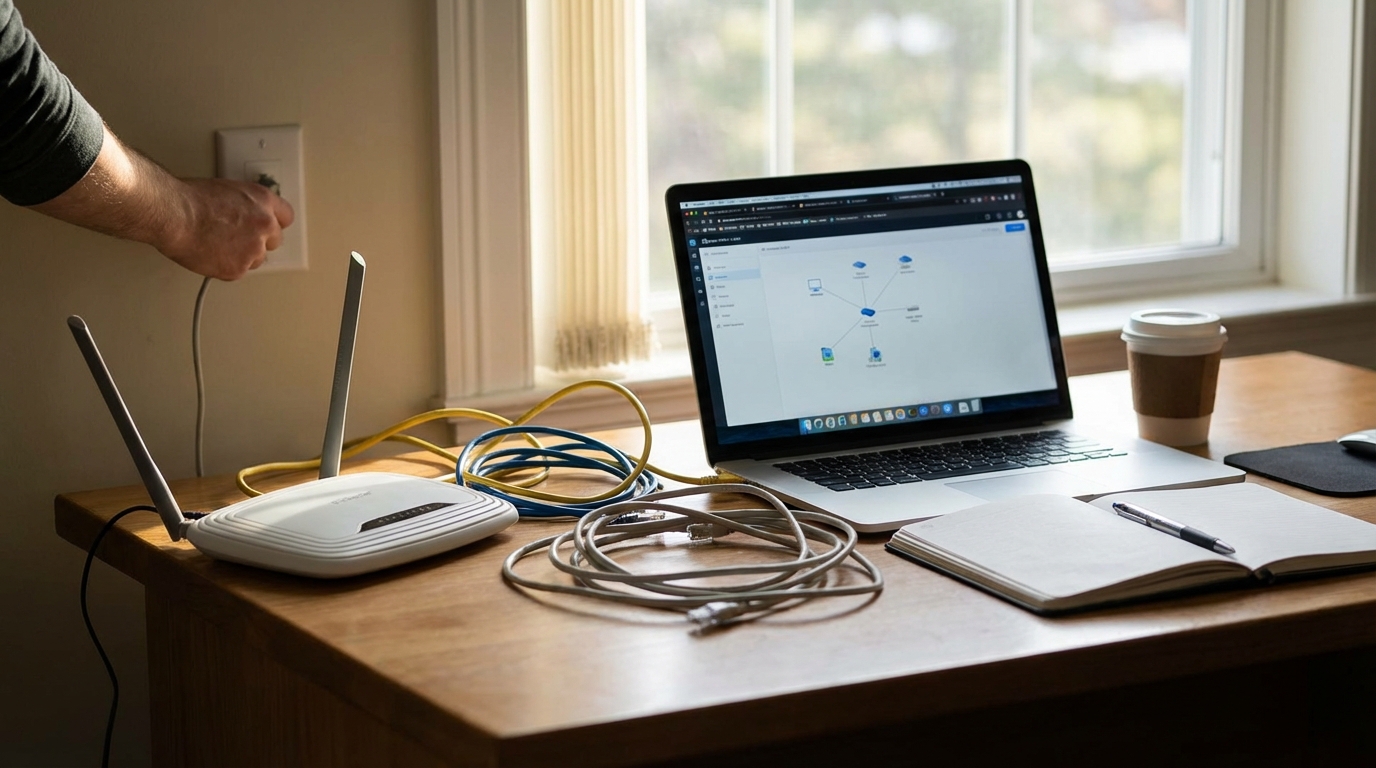
In the digital age, home computers are more connected than ever. From browsing the internet to streaming media, sharing files, and connecting smart devices, a robust and well-understood home network forms the backbone of our digital lives. Far from being an arcane technical subject, understanding the basics of how your home network operates empowers you to troubleshoot common issues, enhance security, and optimize your online experience. This post aims to demystify the essential components and concepts behind home computer networking, providing a foundational knowledge for every digital homeowner.
What is a Home Network?
At its core, a home network is a system that allows multiple devices within a household to connect and communicate with each other, and often, with the wider internet. Think of it as a localized communication hub, enabling a seamless flow of data between your computers, smartphones, tablets, smart TVs, printers, and other internet-connected gadgets.
The primary functions and advantages of setting up a home network include:
- Internet Access: All connected devices can share a single internet connection provided by your internet service provider (ISP).
- File Sharing: Easily share documents, photos, and videos between computers without needing physical media.
- Printer Sharing: Multiple computers can use a single printer, reducing the need for individual printers for each device.
- Media Streaming: Stream content from one device (like a media server) to another (like a smart TV or tablet).
- Device Interoperability: Smart home devices, gaming consoles, and other peripherals can communicate and be controlled from central points.
Key Components of a Home Network
Several essential pieces of hardware work in concert to form your home network. Understanding the role of each is crucial.
Modem
The modem is the gateway between your home network and the internet service provider (ISP). Its primary function is to convert signals from your ISP (delivered via cable, fiber, or DSL lines) into a digital format that your home network devices can understand, and vice versa. Without a modem, your home network cannot access the internet.
Router
The router is often considered the brain of your home network. It performs several critical tasks:
- Traffic Direction: It directs data traffic between your connected devices and the modem, ensuring information goes to the correct destination.
- IP Address Assignment: Using DHCP (Dynamic Host Configuration Protocol), it assigns unique local IP addresses to each device on your network, allowing them to be identified.
- Wireless Access Point: Most modern routers include a wireless access point, enabling devices to connect to the network wirelessly (Wi-Fi).
- Network Security: It often includes built-in firewall capabilities to protect your local network from unauthorized external access.
It’s common for ISPs to provide a combined modem-router unit, simplifying setup but sometimes limiting configuration options.
Network Cables (Ethernet)
Ethernet cables provide a wired connection between network devices. They are typically used for connecting routers to modems, computers to routers, or for connecting other network-enabled devices where a stable, high-speed connection is paramount. Common types include Cat5e, Cat6, and Cat7, each offering different speed capabilities.
Wireless Adapters
For devices that don’t have built-in Wi-Fi capabilities (such as older desktop computers), a wireless adapter can be added. These typically come in USB dongle or PCIe card forms and allow the device to connect to your network wirelessly.
Network Switches (Optional)
If you have many wired devices and your router doesn’t have enough Ethernet ports, a network switch can be used. A switch expands the number of available wired connections, allowing more devices to connect to your network via cables.
Types of Network Connections
Home networks primarily utilize two types of connections:
Wired Connections (Ethernet)
- Characteristics: Devices are physically connected using Ethernet cables.
- Advantages: Generally offer higher speeds, lower latency, greater stability, and enhanced security compared to wireless. They are less prone to interference.
- Considerations: Requires running physical cables, which can be inconvenient, and limits device mobility.
Wireless Connections (Wi-Fi)
- Characteristics: Devices connect to the network using radio waves, typically through a router’s wireless access point.
- Advantages: Provides flexibility and mobility, allowing devices to connect from anywhere within the router’s range without physical cables.
- Considerations: Can be subject to interference from other electronic devices or physical obstructions, potentially leading to slower speeds or dropped connections. Security requires careful configuration.
Basic Network Protocols and Concepts
To further understand your home network, familiarity with a few key concepts is helpful:
- IP Address: An Internet Protocol (IP) address is a unique numerical label assigned to each device connected to a computer network that uses the Internet Protocol for communication. There are two main versions: IPv4 (e.g., 192.168.1.1) and the newer IPv6 (a longer, more complex address format). Your router assigns local IP addresses to devices on your home network.
- MAC Address: A Media Access Control (MAC) address is a hardware identification number that uniquely identifies each device on a network. Unlike IP addresses, which can change, MAC addresses are typically hard-coded into the network interface card (NIC) of a device.
- DHCP (Dynamic Host Configuration Protocol): This is a network protocol that automatically assigns IP addresses and other network configuration parameters to devices connected to a network. This automation simplifies network management as you don’t need to manually configure each device.
- DNS (Domain Name System): DNS is often called the “phonebook of the internet.” When you type a website name (like “example.com”) into your browser, DNS translates that human-readable domain name into the machine-readable IP address associated with that website, allowing your computer to find and connect to the correct server.
- Bandwidth: This term refers to the maximum rate of data transfer across a given path. It is typically measured in megabits per second (Mbps) or gigabits per second (Gbps). Higher bandwidth means more data can be transferred over the network in a given amount of time, leading to faster internet speeds and quicker file transfers.
Setting Up a Basic Home Network
While specific steps may vary slightly depending on your hardware and ISP, a general outline for setting up a home network typically includes:
- Connect the Modem: Plug your modem into the appropriate wall jack (e.g., cable outlet, fiber optic terminal, phone line for DSL) and connect it to its power source.
- Connect the Router: Use an Ethernet cable to connect the modem’s LAN/Ethernet port to the router’s WAN/Internet port. Then, connect the router to its power source.
- Power On Devices: Allow both the modem and router to power on and initialize completely. This may take a few minutes as indicator lights stabilize.
- Connect Devices:
- Wired: Connect computers or other devices directly to the router’s LAN ports using Ethernet cables.
- Wireless: On your wireless devices, search for Wi-Fi networks. Select your router’s default network name (SSID), which is usually found on a sticker on the router, and enter the default password.
- Initial Configuration: Access your router’s administration interface (usually via a web browser by typing its default IP address, like 192.168.1.1 or 192.168.0.1). Here, you should change the default Wi-Fi network name (SSID) and set a strong, unique password for your Wi-Fi network and for accessing the router’s administration panel itself.
Network Security Fundamentals
Securing your home network is paramount to protect your data and privacy. Here are foundational security practices:
- Strong Wi-Fi Password: Always use WPA2 or WPA3 encryption for your Wi-Fi network and choose a complex, unique password that combines letters, numbers, and symbols. Avoid sharing it widely.
- Change Router Admin Password: The default login credentials for your router’s administration interface are widely known. Change these immediately to a strong, unique password to prevent unauthorized access to your network settings.
- Keep Firmware Updated: Router manufacturers regularly release firmware updates that include security patches and performance improvements. Regularly check for and install these updates.
- Enable Firewall: Most routers have a built-in firewall. Ensure it is enabled to filter incoming and outgoing network traffic, blocking suspicious connections.
- Consider a Guest Network: Many routers offer the option to set up a separate guest network. This allows visitors to access the internet without having access to your primary network devices and shared files.
Common Network Issues and Troubleshooting Tips
Even with a well-configured network, occasional issues can arise. Here are some common problems and basic troubleshooting steps:
- No Internet Connection:
- Check if the modem and router are powered on and all cables are securely connected.
- Reboot both the modem and router by unplugging them for 30 seconds and then plugging them back in, starting with the modem.
- Check your ISP’s status for local outages.
- Slow Network Speeds:
- Test speeds on different devices, both wired and wireless, to identify if the issue is widespread or localized.
- Consider potential interference for Wi-Fi (e.g., microwaves, cordless phones, thick walls).
- Ensure your router’s firmware is up to date.
- Reduce the number of devices simultaneously streaming or downloading.
- Device Not Connecting to Wi-Fi:
- Ensure Wi-Fi is enabled on the device.
- Verify you are entering the correct Wi-Fi password.
- Restart the device and try connecting again.
- Move closer to the router to rule out range issues.
Conclusion
Understanding the basics of your home network is a fundamental skill in today’s interconnected world. By grasping the roles of modems and routers, the differences between wired and wireless connections, and key networking concepts, you gain the ability to manage your digital environment more effectively. From a straightforward setup to maintaining security and performing basic troubleshooting, this foundational knowledge empowers you to build a more reliable, secure, and efficient home network for all your devices.
Frequently Asked Questions (FAQs)
1. What is the difference between a modem and a router?
A modem connects your home to your internet service provider (ISP) and translates internet signals. A router, on the other hand, creates a local network within your home, allowing multiple devices to connect to each other and share the internet connection provided by the modem.
2. What is an IP address?
An IP address is a unique numerical label assigned to each device connected to a computer network. It serves two main functions: identifying the host or network interface and providing a location address for data communication.
3. How can I improve my Wi-Fi signal at home?
You can improve your Wi-Fi signal by placing your router in a central, open location away from obstructions and other electronics that cause interference. Keeping your router’s firmware updated and considering a Wi-Fi extender or mesh system for larger homes can also help.
4. Is a wired connection faster than Wi-Fi?
Generally, a wired Ethernet connection offers faster, more stable speeds with lower latency compared to Wi-Fi. It is also less susceptible to interference and provides a more secure connection, making it suitable for activities like online gaming or large file transfers.
5. How often should I update my router’s firmware?
It is advisable to check for and install firmware updates for your router periodically, typically every few months or when a notification for an update is available. Firmware updates often include important security patches, bug fixes, and performance improvements that enhance your network’s reliability and protection.

Diana Miller, is a dedicated nature enthusiast and an outdoor adventurer. She began leading groups for excursions in her teens and never stopped. Following her passion for nature, she gathers her friends for outdoor trips every now and then. And for the last 10 years, she has executed workshops on backpacking, snow kayaking and traveling that included her main motive of lightweight packing while outdoors. During leisure, she loves planning for her next adventure.